# ASP.NET Core 網站如何整合 Google 的 reCAPTCHA Enterprise 功能
我們公司[多奇數位創意的官網](https://www.duotify.com/)去年底全新改版上線,網站上幾乎每頁都有**聯絡多奇**表單,並透過 AJAX 傳送到後端 API 負責記錄並送出郵件到我們公司的服務信箱,但網站上線一個月以來,已經收到超過 100 條垃圾訊息。因此,我打算將表單加入 [Google Cloud Platform](https://cloud.google.com/) (GCP) 的 [reCAPTCHA Enterprise](https://cloud.google.com/recaptcha-enterprise) 服務,減少收到垃圾訊息的機會,不過我發現 GCP 的文件幾乎找不到任何一份完整的 C# 範例程式,連 [ChatGPT](https://openai.com/blog/chatgpt/) 都問不出正確結果。這篇文章我來分享一下完整的開發流程!
### 先整理幾個重要概念
[reCAPTCHA](https://zh.m.wikipedia.org/wiki/ReCAPTCHA) 原本是由[卡內基美隆大學](https://zh.m.wikipedia.org/wiki/%E5%8D%A1%E5%86%85%E5%9F%BA%E6%A2%85%E9%9A%86%E5%A4%A7%E5%AD%A6)所發展的系統,主要目的是利用 [CAPTCHA](https://zh.m.wikipedia.org/wiki/CAPTCHA) 技術來幫助典籍數位化的進行,這個計畫將由書本掃瞄下來無法準確的被光學文字辨識技術識別的文字顯示在 CAPTCHA 問題中,讓人類在回答 CAPTCHA 問題時用**人腦**加以識別。2009 年 9 月 17 日 Google 宣佈收購 reCAPTCHA 技術,持續發展之下也提供標準的 API 供用戶免費使用,時至今日已經發展出好幾個版本。
目前可以在 Google 網站找到 3 個不同的版本,其功能與特性各有不同:
1. [reCAPTCHA v2](https://developers.google.com/recaptcha/docs/display)
除了原來的文字掃瞄圖片外,也採用 Google 街景拍攝的門牌號碼相片。
2. [reCAPTCHA v3](https://developers.google.com/recaptcha/docs/v3)
採用**分數制**驗證系統,對使用者在網站上的動作進行評分,若分數過低則會被判定為機器人。
3. [reCAPTCHA Enterprise](https://cloud.google.com/recaptcha-enterprise)
與 `reCAPTCHA v3` 相同,採用**分數制**驗證系統,但能夠提供**更精細的分數**以及**高風險分數原因代碼**,以供進一步分析之用。
> 本篇文章主要是以 [reCAPTCHA Enterprise](https://cloud.google.com/recaptcha-enterprise) 為主,版本比較可參考 [Comparison of features between reCAPTCHA versions](https://cloud.google.com/recaptcha-enterprise/docs/compare-versions) 文件。
[reCAPTCHA Enterprise](https://cloud.google.com/recaptcha-enterprise) 有個重要的概念,就是 [reCAPTCHA keys](https://cloud.google.com/recaptcha-enterprise/docs/keys) 或 `site keys`,我將其翻譯為「網站通關金鑰」或是「驗證金鑰」也許比較恰當,他是一個使用在你網站的一組公開金鑰,透過這個 `site keys` 會依據使用者端提供的各種資訊,自動產生一個唯一的「回應值」(Response),你要把這個「回應值」傳到後端的 reCAPTCHA Server 進行驗證,由 reCAPTCHA Server 判斷出這個「回應值」是否是「真人」(Human)或「假人」(Bots)。
[reCAPTCHA Enterprise](https://cloud.google.com/recaptcha-enterprise) 的 [`site keys`](https://cloud.google.com/recaptcha-enterprise/docs/keys) 有 3 種使用方式:
1. `Score-based (no challenge) site keys`
以「分數」為基礎的驗證方法,這種驗證方法完全**不需要由使用輸入資訊**,系統會自動判斷使用者透過瀏覽器、鍵盤或是觸控等使用方式,自動收集使用者跟手機或網頁之間的互動情況,判斷該「使用者」是否為「真人」或「假人」,送到 reCAPTCHA Server 驗證時,會提供你一個「分數」(Score),從 `0.0` ~ `10.0` 分,其中 `0.0` 就是絕對的「假人」,而 `10.0` 就是絕對的「真人」。這種類型的 `site keys` 適用於「手機 APP」或「網頁」環境。
> 我們的官網就是使用者種方式進行實作,這樣對使用者來說非常方便,不用讓客戶還在那邊選「哪幾張圖是公車」之類的,表單輸入門檻會低很多。
2. `Checkbox (checkbox challenge) site keys`
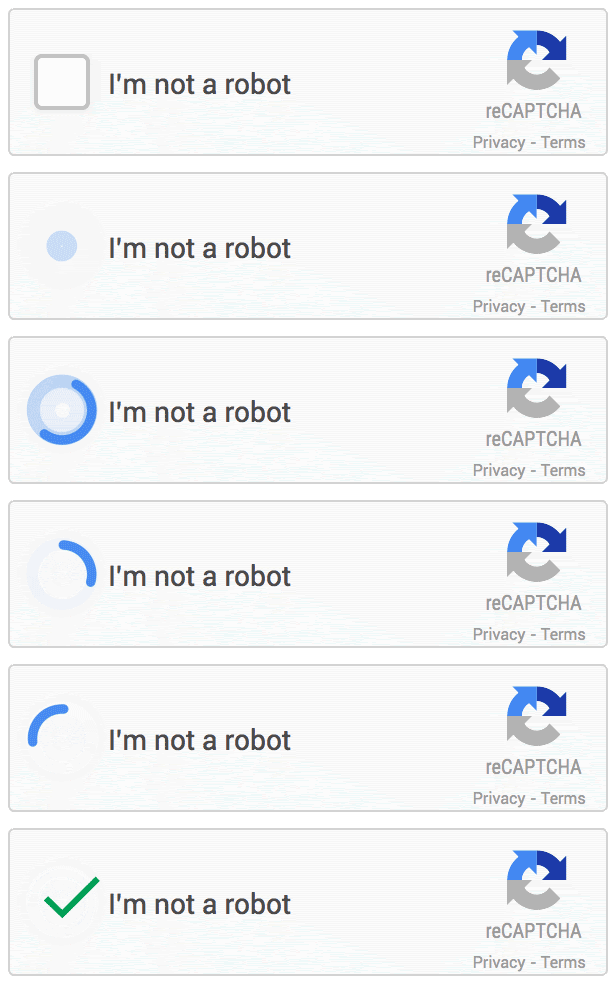
所謂 `Checkbox` 就真的是「核取方塊」的意思(如下圖示),他需要使用者真的去對這個 `Checkbox` 做個點擊的動作,藉此判斷跟網頁互動的對像是否為「真人」在操作。想當然的,這種驗證方式一定要跟使用者發生互動,所以只能用在「網頁」的介面上,尤其特別適合用在「表單填寫」、「網站登入」、「註冊會員」等網頁功能,但不適用於透過「手機 APP」或其他互動方式。
> 這種驗證方式可能不適用於所有情境,例如要提供「無障礙」網站的話,對「視覺」有問題的用戶就會很不方便,因此使用時要注意。詳見 [Understanding the caveats with CAPTCHA challenges](https://cloud.google.com/recaptcha-enterprise/docs/choose-key-type#captcha-challenges)
3. `reCAPTCHA WAF site keys`
這個 reCAPTCHA WAF site keys 可以讓你把 sitekey 安裝在 WAF (應用程式防火牆) 這一層,但這種作法必須要合格的 WAF service provider 才能使用,例如 GCP 自家的 [Google Cloud Armor](https://cloud.google.com/armor) 服務。詳情請見 [reCAPTCHA Enterprise for WAF and Google Cloud Armor integration overview](https://cloud.google.com/recaptcha-enterprise/docs/integration-overview) 說明。
### 整合 reCAPTCHA Enterprise 的大致流程
想要整合 reCAPTCHA Enterprise 到你的網站,建議多少理解一下 reCAPTCHA Enterprise 的運作流程,你可以從 [How reCAPTCHA Enterprise works](https://cloud.google.com/recaptcha-enterprise/docs/overview#how-recaptcha-enterprise-works) 看到以下循序圖(sequence diagram):
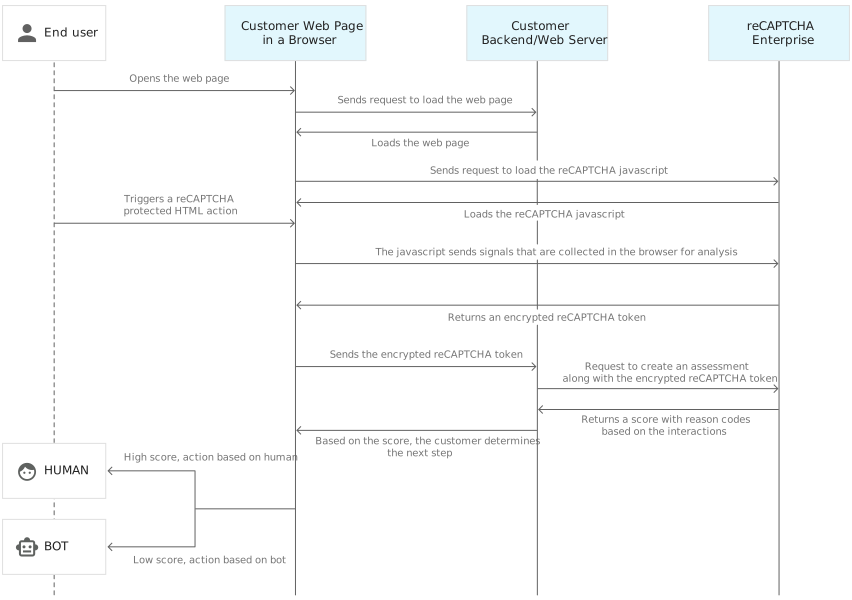
即便你大概知道這個流程,我還是覺得整合 reCAPTCHA Enterprise 有一點小門檻,所以我打算簡化成以下 3 個步驟來說明:
1. 申請 reCAPTCHA keys 階段
你要到 [Google Cloud console](https://console.cloud.google.com/) 建立 [reCAPTCHA keys](https://console.cloud.google.com/security/recaptcha)
> 也可以從 [Google Cloud console](https://console.cloud.google.com/) 左上角的**漢堡選單**選取 `Security` > `reCAPTCHA Enterprise` 進入此頁面
2. 收集前端使用者回應值階段
安裝 reCAPTCHA keys 到網頁上 (主要用來收集 reCAPTCHA 回應值)
3. 後端評估與驗證回應值階段
這個步驟會先從後端應用程式取得前端傳來的回應值,並將回應值送到 reCAPTCHA Server 進行評估(assessment),並取得一個評估後的 Score (分數),從該**分數**判斷這個 HTTP 要求是否要允許通過。
> 此步驟最為麻煩,主因是缺少 ASP.NET Core 範例,所以上手確實有點門檻!
以下我就依據這三個階段,分別說明作法!
### 申請 reCAPTCHA keys 階段
> 你可以參考 [Creating reCAPTCHA keys](https://cloud.google.com/recaptcha-enterprise/docs/create-key) 這份文件進行操作。
1. 你要先有一個 [Google 帳戶](https://accounts.google.com/)
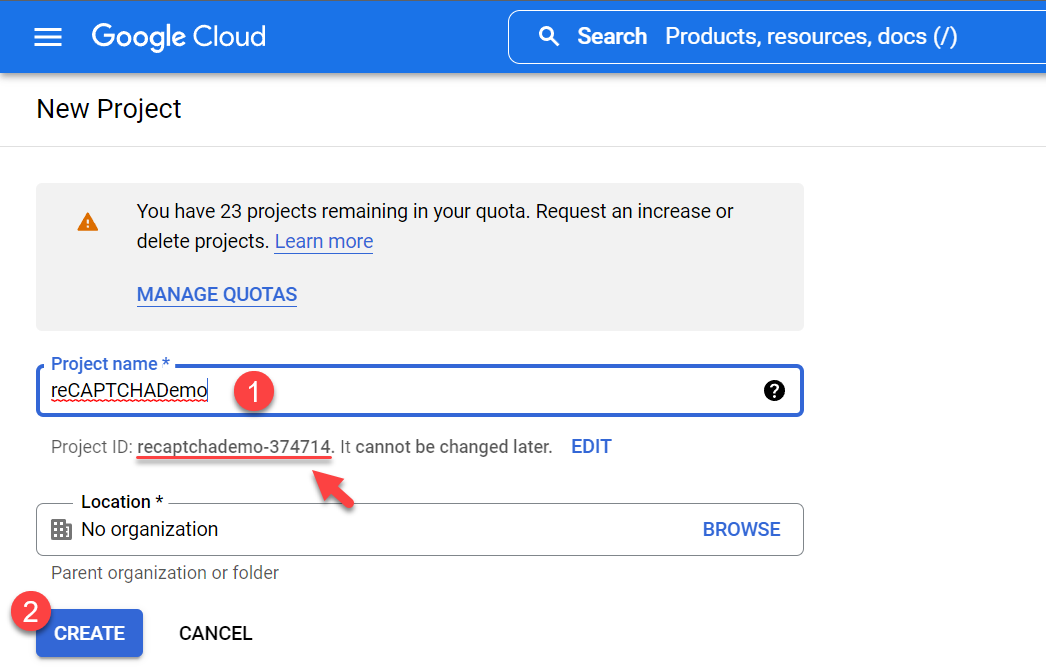
2. 在 Google Cloud Console [建立一個新專案](https://cloud.google.com/resource-manager/docs/creating-managing-projects#creating_a_project)
3. 啟用 `reCAPTCHA Enterprise API` 服務
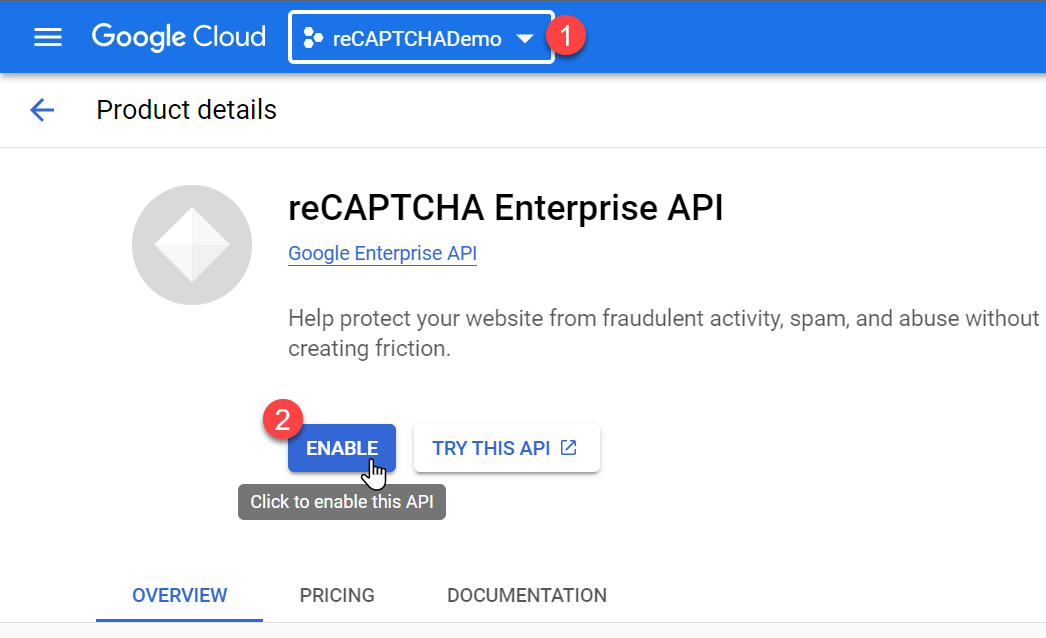
進入 [reCAPTCHA Enterprise](https://console.cloud.google.com/security/recaptcha) 頁面,如果尚未啟用 `reCAPTCHA Enterprise API` 服務的話,會先出現以下畫面,你必須選對 GCP 上面的**專案**(Project),然後按下 `ENABLE` 啟用服務:
4. 建立 reCAPTCHA keys
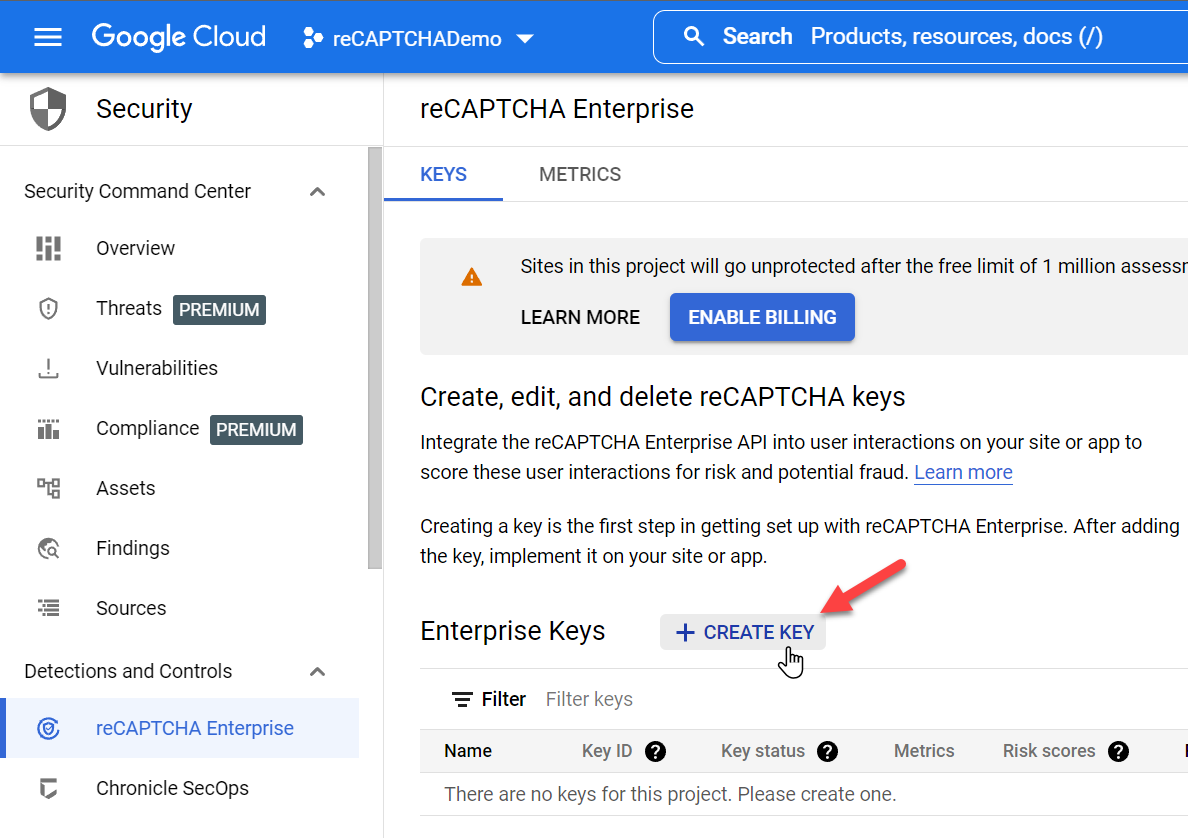
進入 [reCAPTCHA Enterprise](https://console.cloud.google.com/security/recaptcha) 頁面
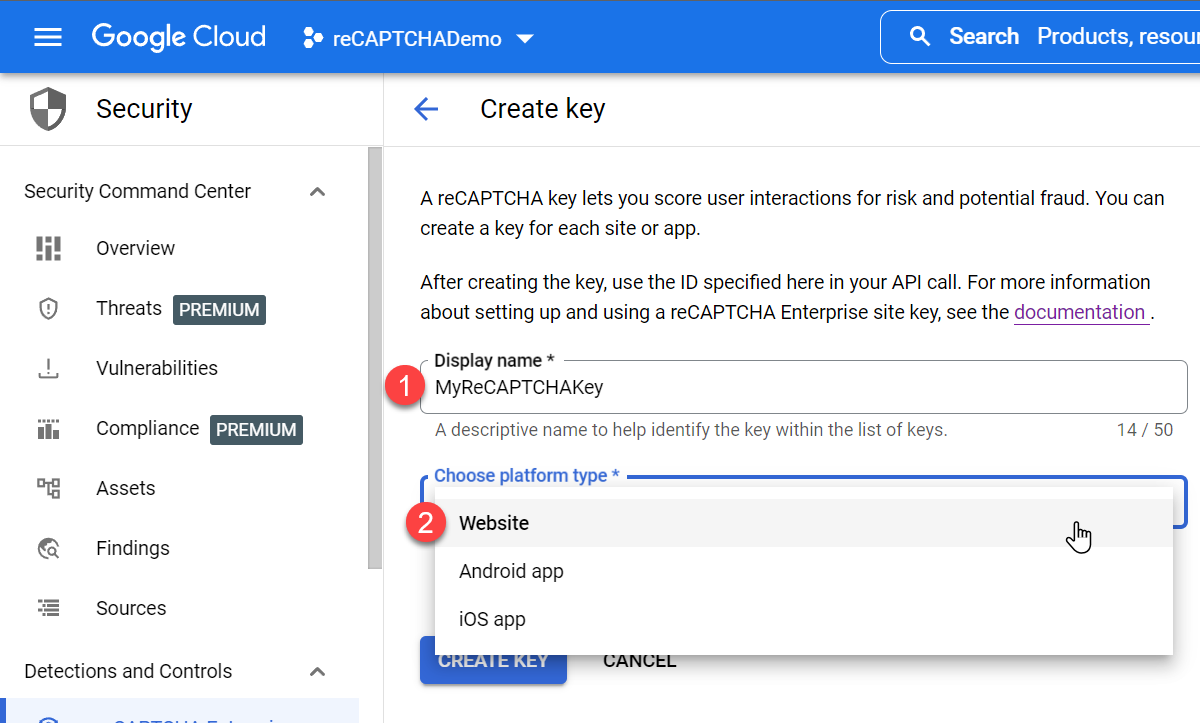
輸入一個顯示名稱(`Display name`)與使用 reCAPTCHA keys 的平台(`Platform type`),由於我們是一個網站服務,所以記得選擇 `Website` 選項
如果是網站使用,就要設定網站的域名在此,你可以新增多個域名:
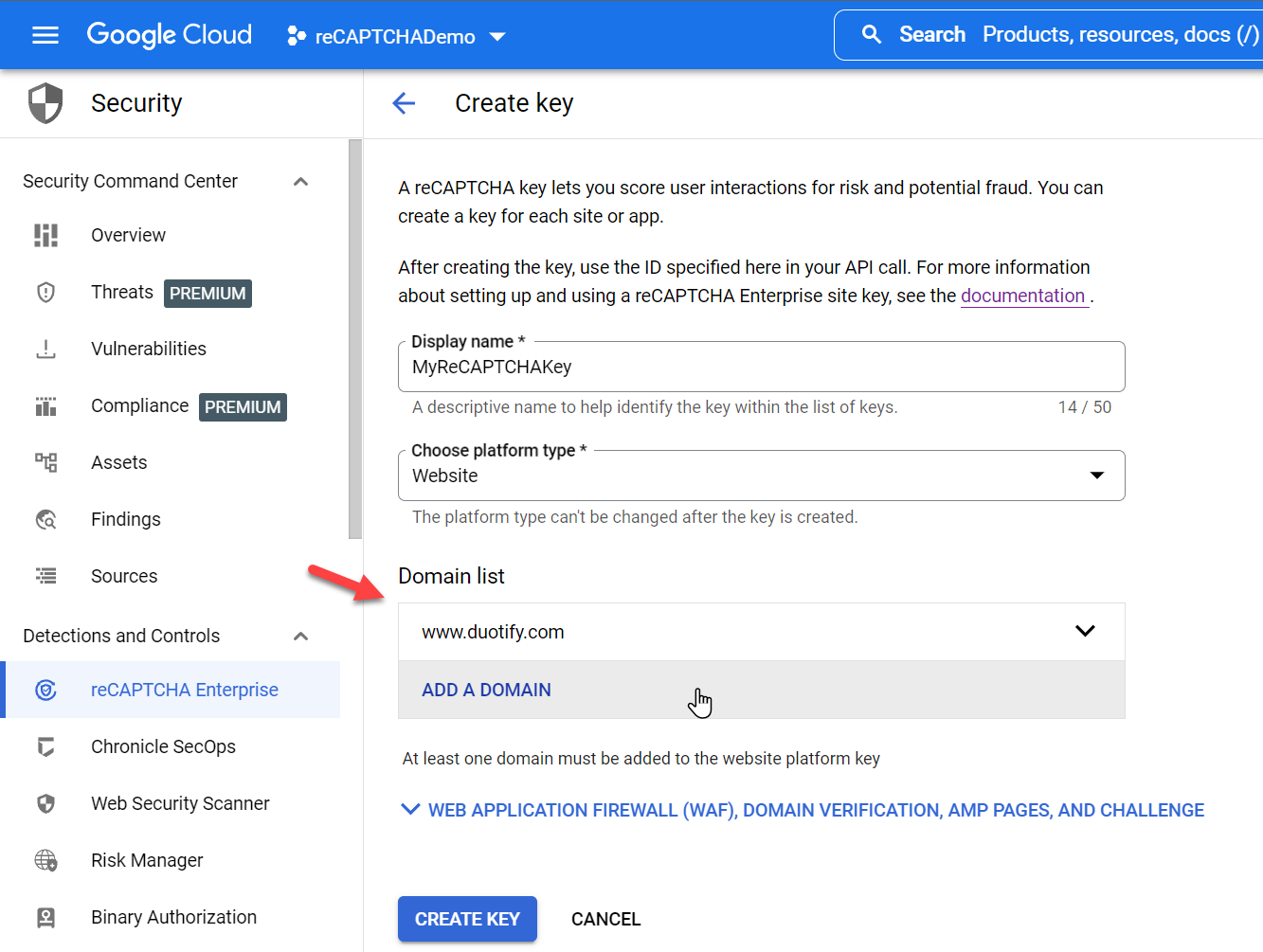
最後按下 `CREATE KEY` 建立即可。
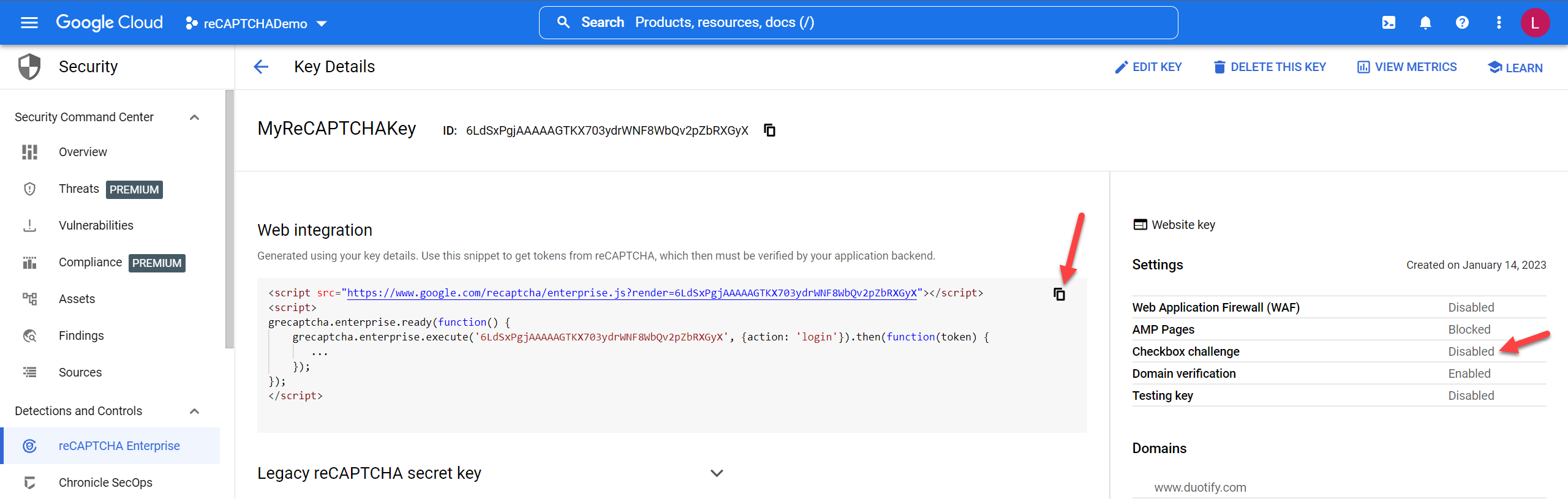
### 收集前端使用者回應值階段
我們從上一個步驟可以看到一個 `Web integration` 區段,這裡有一段 JavaScript 程式碼片段,你直接複製起來,貼上到網頁的 `` 區段內,即可開始收集前端使用者回應值。
範例程式碼如下:
```html
```
這裡特別需要知道的地方有以下幾點:
1. 程式碼片段的 `6LdSxPgjAAAAAGTKX703ydrWNF8WbQv2pZbRXGyX` 就是你的 `reCAPTCHA key`
2. 這裡的 `grecaptcha.enterprise.ready()` 函式會在載入完 reCAPTCHA Enterprise 函式庫後執行,只會執行一次
3. 這裡的 `grecaptcha.enterprise.execute()` 函式則會執行 reCAPTCHA 驗證(這個函式會回傳一個 Promise 物件)
4. 這裡的 `{action: 'login'}` 也很重要,這裡是設定一個「驗證動作」的類型,這個值要跟後端進行驗證時使用相同的 `action` 才行
Google reCAPTCHA 的 `action` 參數可以是任何字串,它可以用來標記驗證的目的或類型。一些常用的 `action` 值包括:`login` (用於登入驗證)、`register` (用於註冊驗證)、`password_reset` (用於密碼重置驗證)、`contact` (用於聯繫表單驗證),但其實沒有一定要用哪一種,不知道要挑哪一種的話,你隨便選個 `login` 其實都可以。
5. 程式碼片段中的 `...` 不是真的程式碼,而是一個要你客製化修改的地方!
由於 `grecaptcha.enterprise.execute()` 函式是一個 Promise 物件,你可以透過 `.then()` 帶入的 function callback 得到一個 `token` 字串,這個就是由 reCAPTCHA Enterprise 幫你收集好的「回應值」,你要設法將這個值帶到後端去驗證。
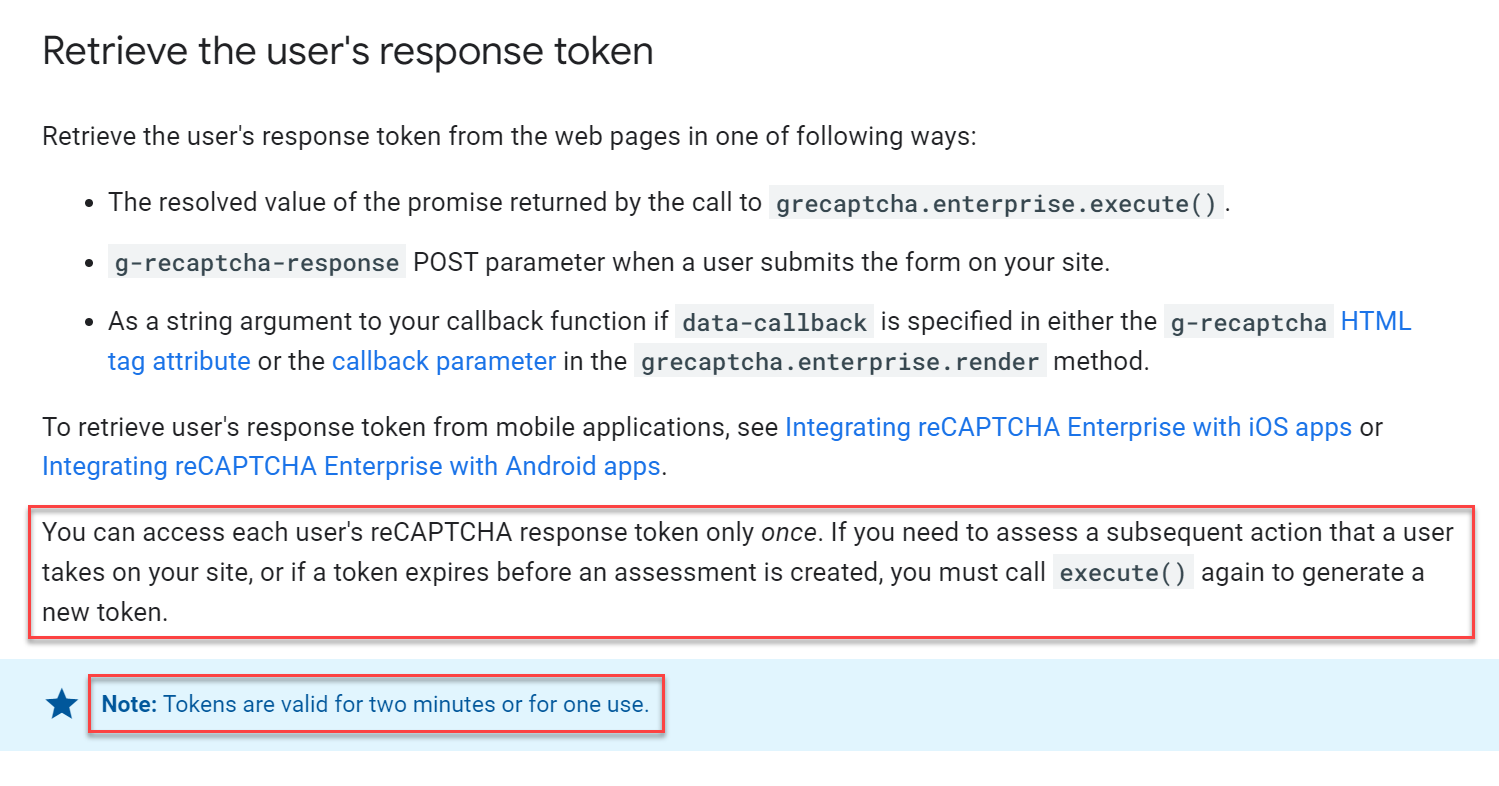
這裡有個地雷是,這個透過 `grecaptcha.enterprise.execute()` 函式取回的 `token` 有效期只有 `2` 分鐘!
各位~ 只有 `2` 分鐘就會**過時**/**過期**!只要 `2` 分鐘就會 `Timeout`!只要 `2` 分鐘就不能用了!
> 很重要,所以說三遍,為了 SEO 要求,我用三份關鍵字描述!🔥
超過 `2` 分鐘之後這個 `token` 就**失效**了,所以千萬不能在「**網頁載入**」的時候就取得 `token` 回應值,否則表單填寫超過 2 分鐘之後不就自動失效了嗎?這個注意事項是有出現在 [Create an assessment](https://cloud.google.com/recaptcha-enterprise/docs/create-assessment#retrieve_token) 官方文件中,我有點懷疑會有多少人看到?😅
### 後端評估與驗證回應值階段
這裡的步驟就有點多了,我會以 ASP.NET Core 6 為例進行解說完整步驟。
1. 到 Google Cloud Console 的 [IAM & Admin > Service accounts](https://console.cloud.google.com/iam-admin/serviceaccounts) 建立一個服務帳戶(`Service Accounts`)
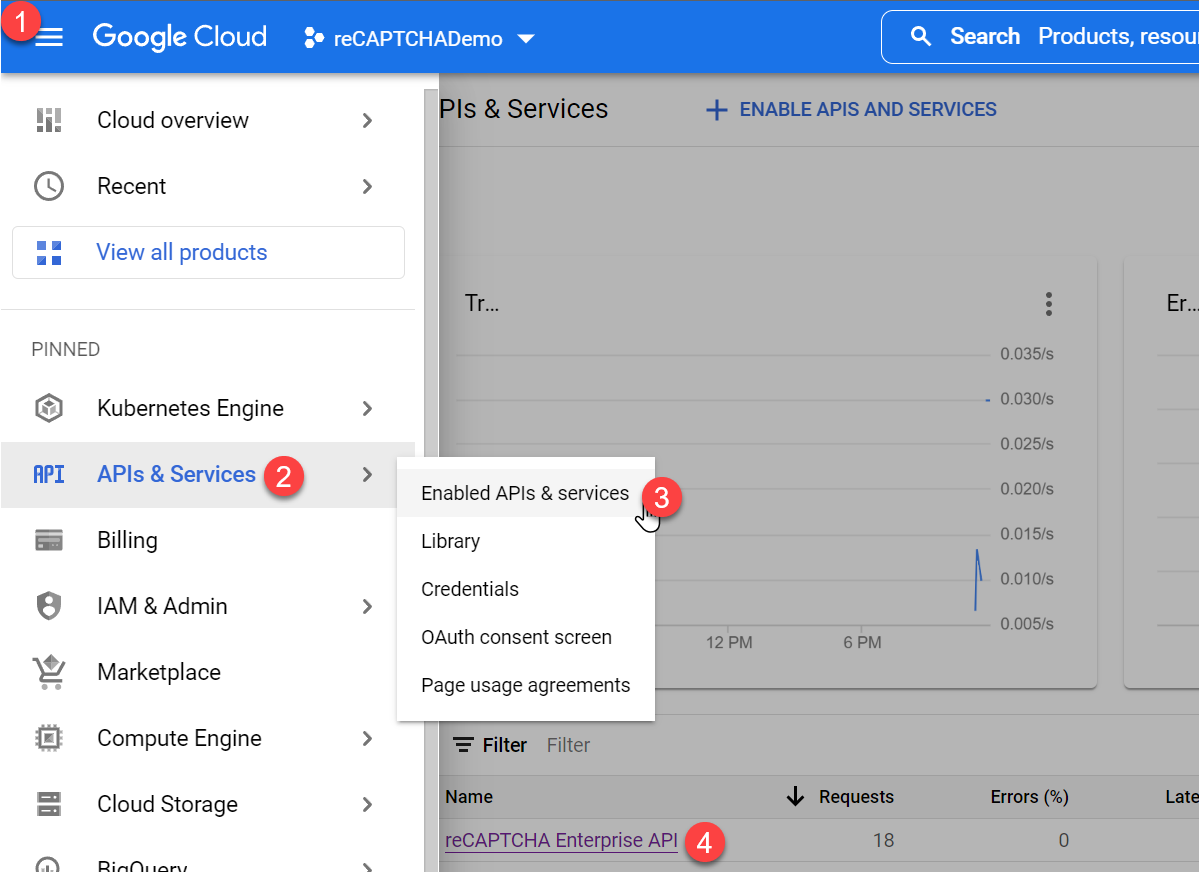
要從網站的後端呼叫 GCP 上面的 API 服務,都需要有一個**身分**(Principal)來呼叫 API 服務。你可以從 `APIs & Services > Enabled APIs & Services` 找到 `reCAPTCHA Enterprise API` 服務,點擊進去:
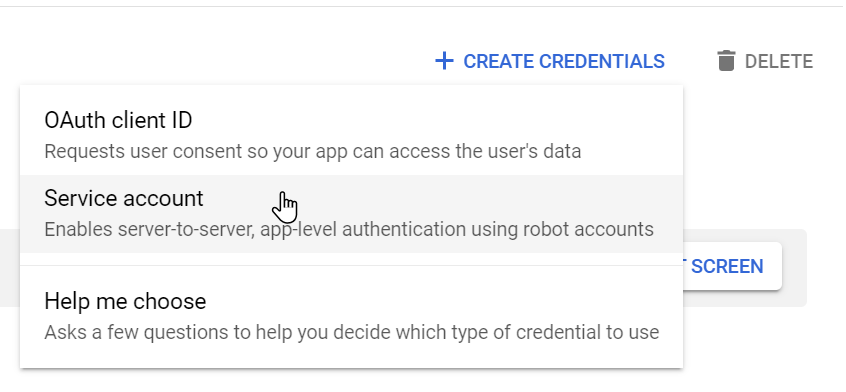
我們要建立一個 reCAPTCHA Enterprise API 所需的 `CREDENTIALS` (身分認證)
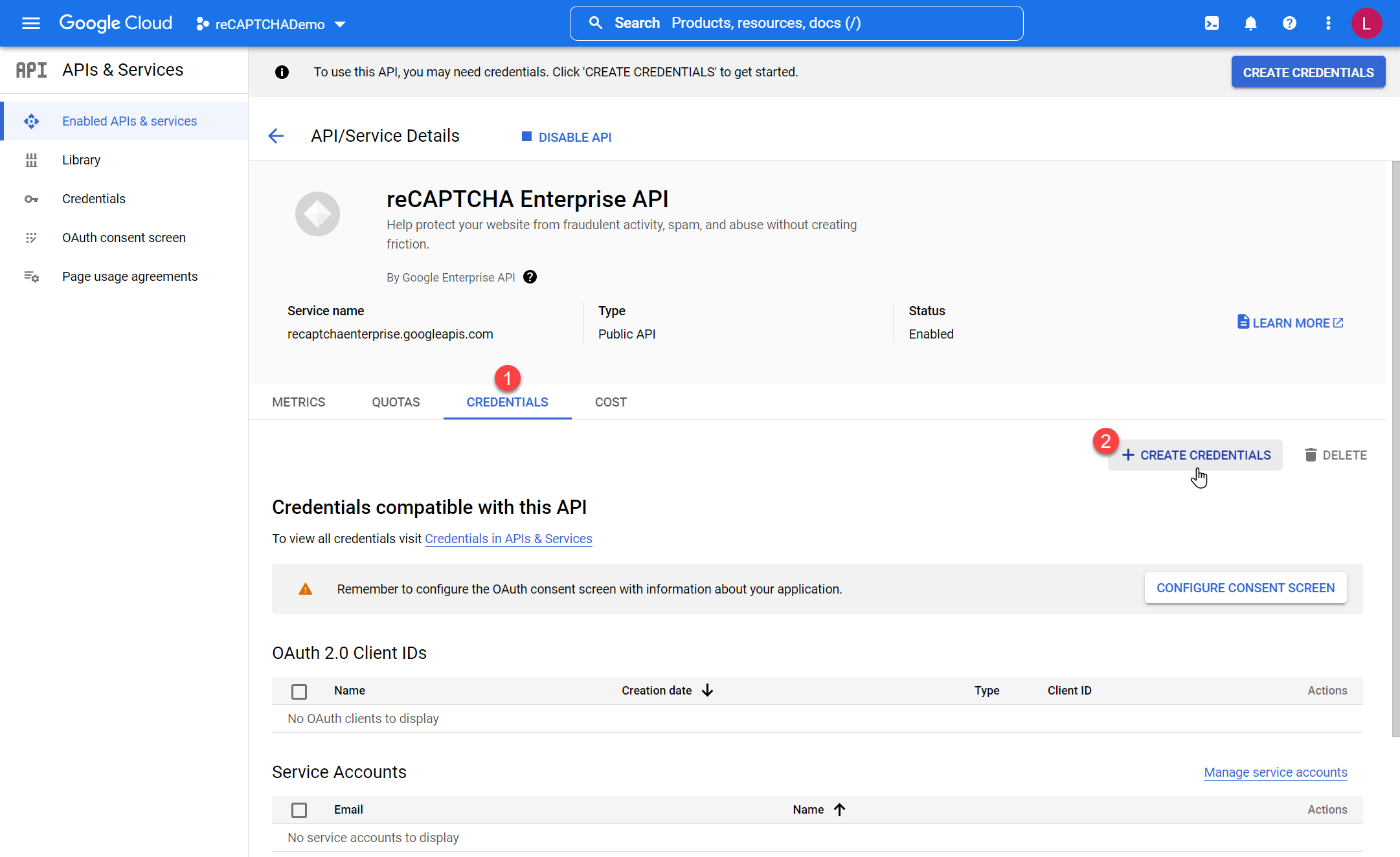
這裡有兩個選項,我們透過網站整合 reCAPTCHA Enterprise API 一定是使用 `Service Accounts` (服務帳戶) 這項!
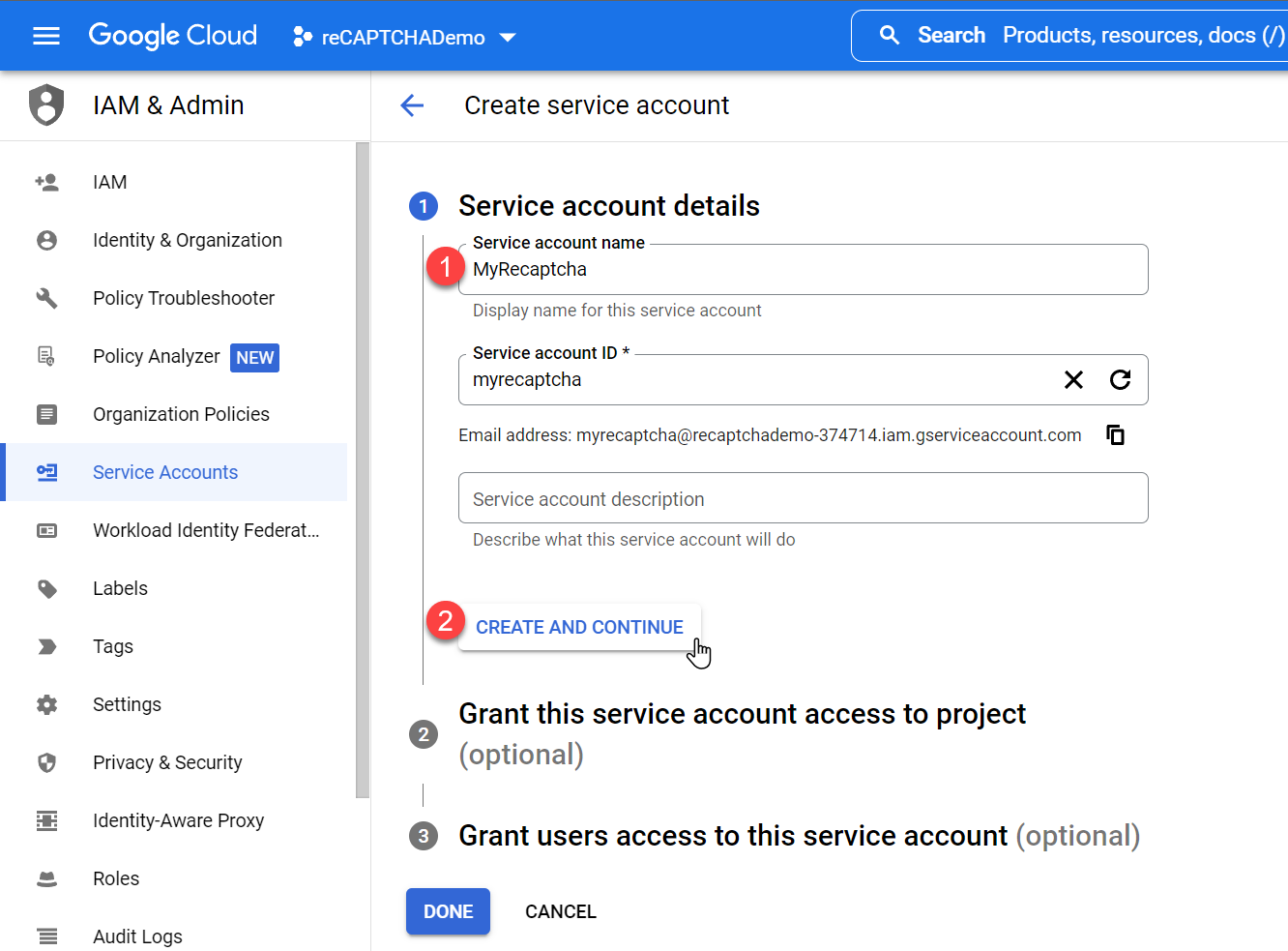
設定一個服務帳戶名稱,好記就好
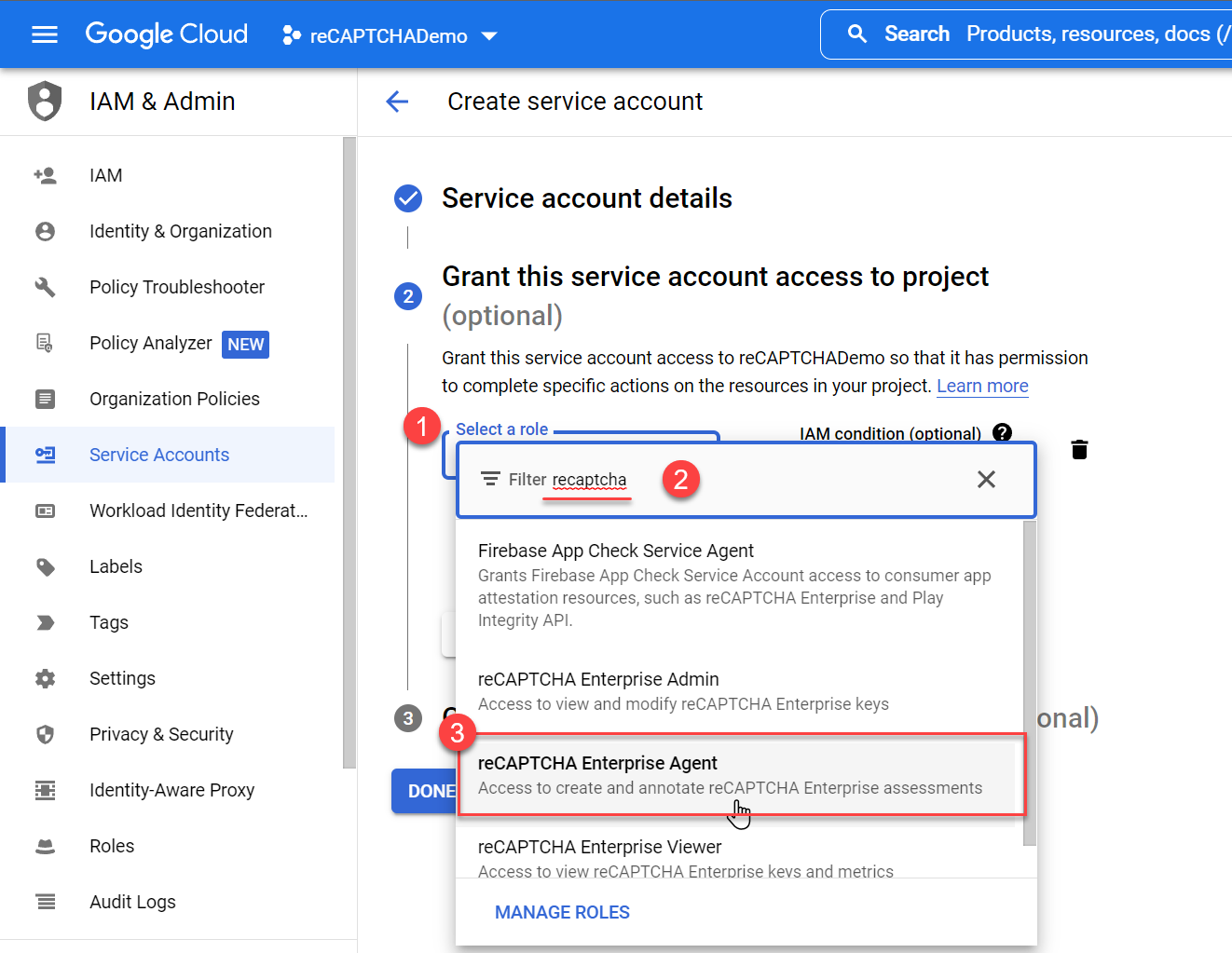
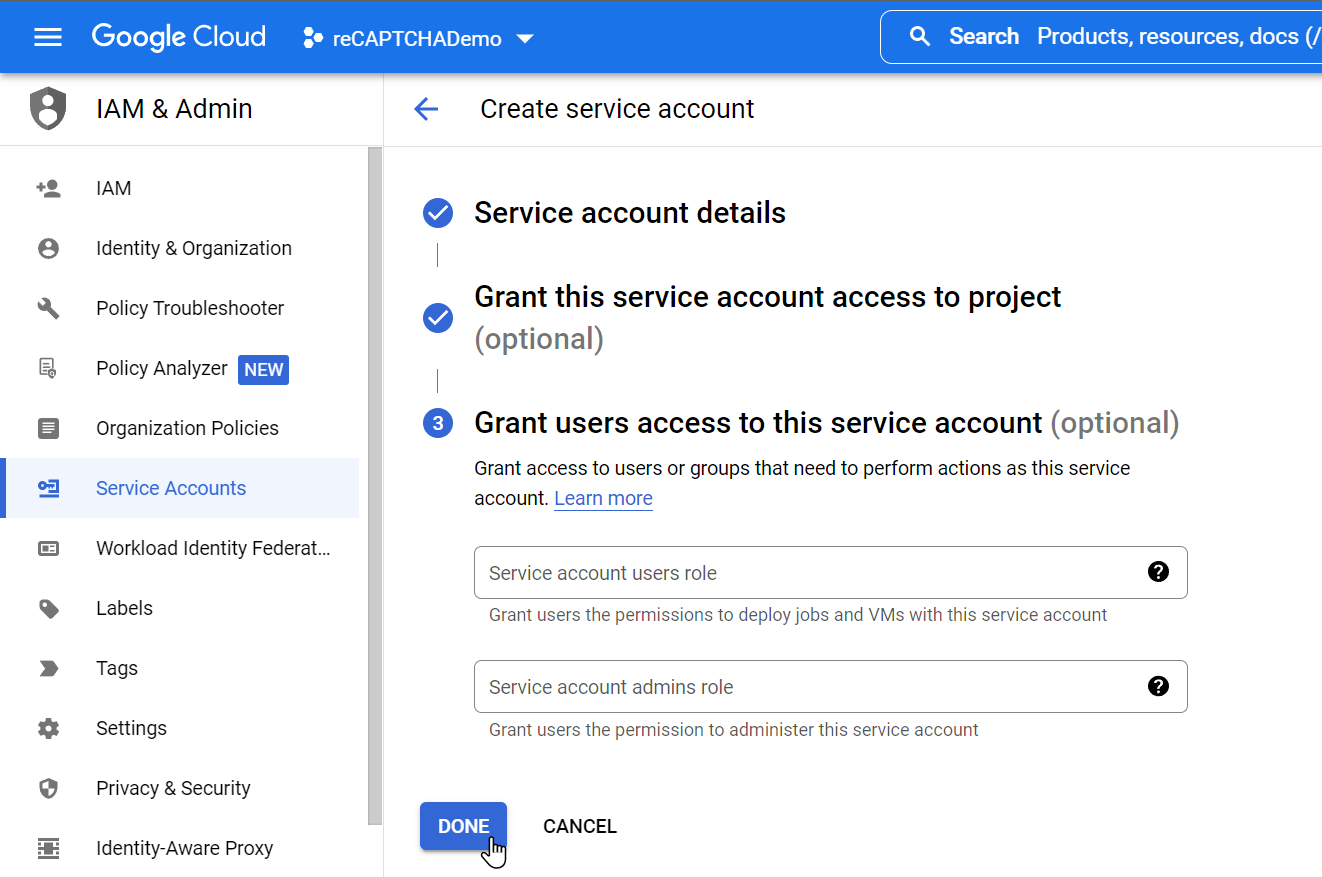
🔥 **這個步驟超級重要**,你要是不在這裡選對 Role (角色),也就是 `reCAPTCHA Enterprise Agent`,就算你取得 `Service Account` 也沒有權限呼叫 `reCAPTCHA Enterprise API`
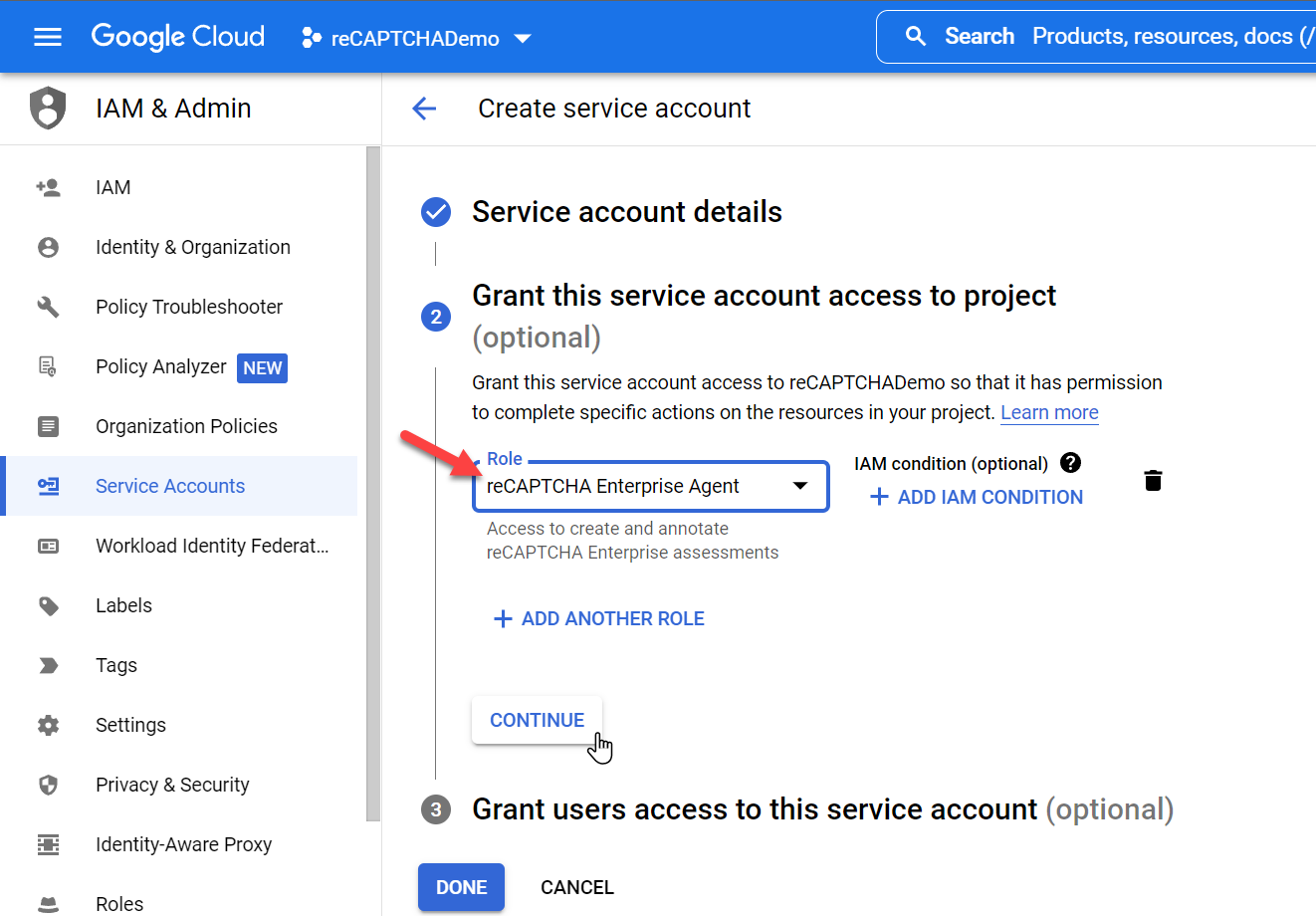
如果沒設定的話,你的 ASP.NET Core 執行時就會得到以下錯誤訊息:
```
Status(StatusCode="PermissionDenied", Detail="Permission denied for: recaptchaenterprise.assessments.create. Please ensure you have sufficient permissions: https://cloud.google.com/iam/docs/granting-changing-revoking-access")
```
這個步驟可以不用設定,直接按下 `DONE` 完成設定。
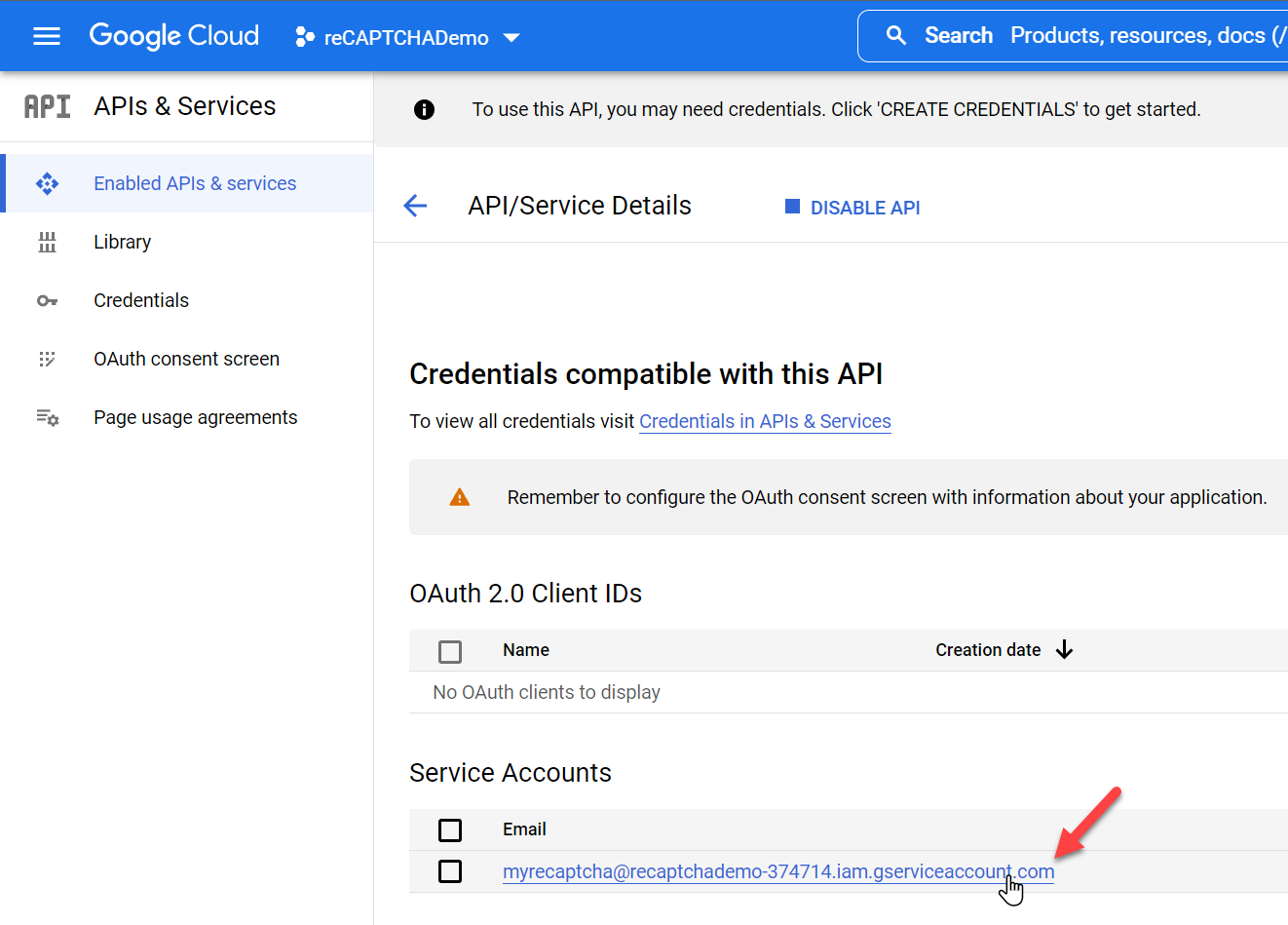
點擊進入剛剛建立的服務帳戶
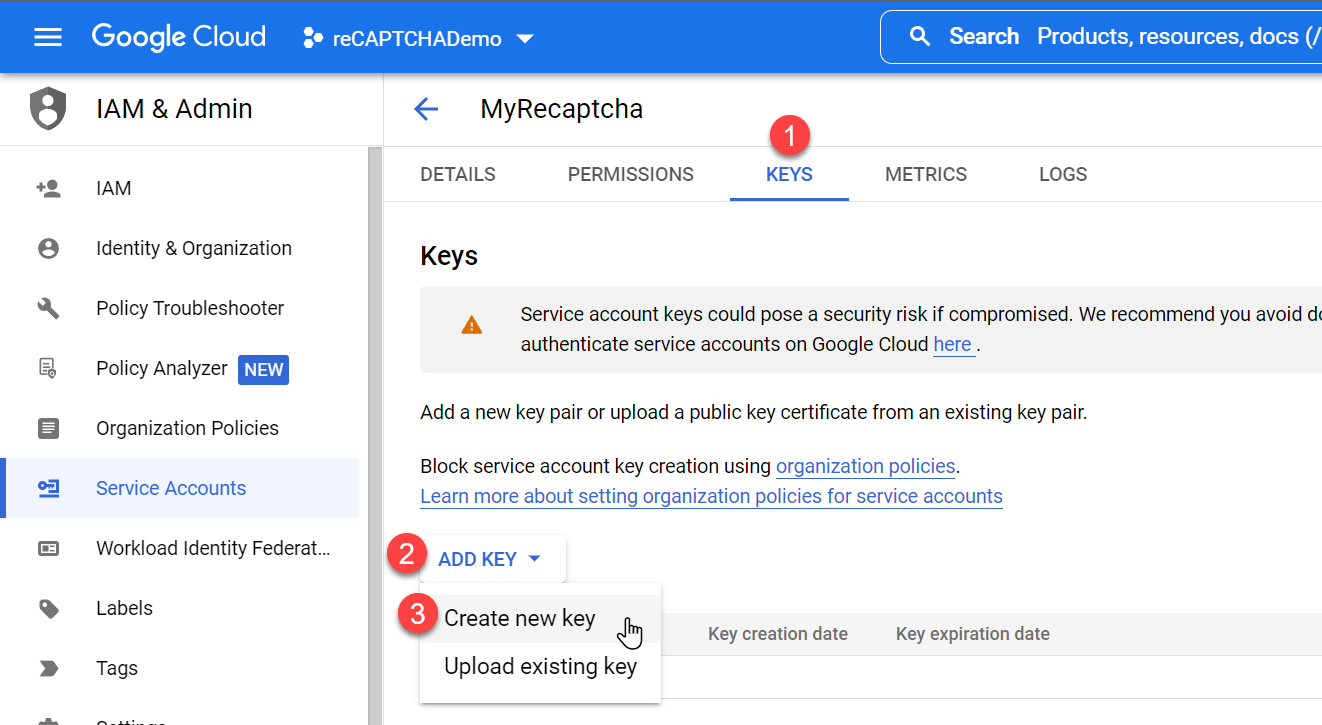
🔥 切換到 `KEYS` 頁籤,建立一把新的**私密金鑰**(key),主要用來給後端程式呼叫 API 時通過驗證用!
建立金鑰可以選擇兩種格式,我們選擇 `JSON` 格式
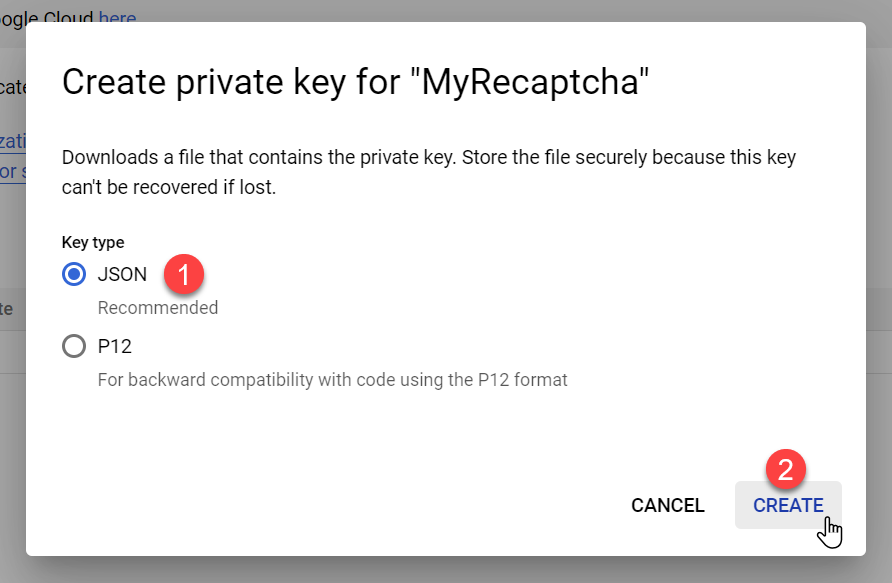
🔥 按下 CREATE 之後,瀏覽器就會直接下載一個 `*.json` 檔案,這個檔案就是我們的金鑰檔,之後在 ASP.NET Core 網站中用的到!
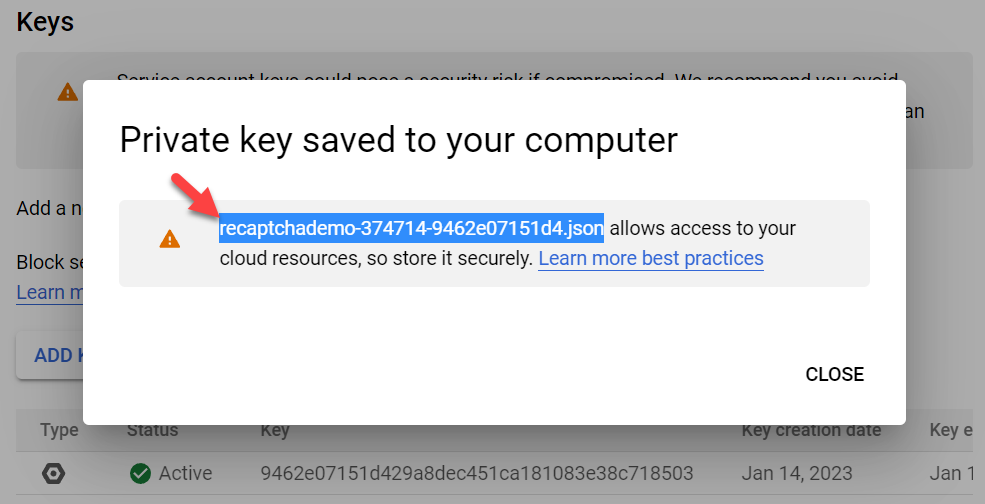
這個 JSON 檔案的內容大致如下:
```json
{
"type": "service_account",
"project_id": "recaptchademo-374714",
"private_key_id": "9462e07151d......181083e38c718503",
"private_key": "-----BEGIN PRIVATE KEY-----\nM...g=\n-----END PRIVATE KEY-----\n",
"client_email": "myrecaptcha@recaptchademo-374714.iam.gserviceaccount.com",
"client_id": "11581452......4955852",
"auth_uri": "https://accounts.google.com/o/oauth2/auth",
"token_uri": "https://oauth2.googleapis.com/token",
"auth_provider_x509_cert_url": "https://www.googleapis.com/oauth2/v1/certs",
"client_x509_cert_url": "https://www.googleapis.com/robot/v1/metadata/x509/myrecaptcha%40recaptchademo-374714.iam.gserviceaccount.com"
}
```
> 這個步驟我做了好幾次,漏掉一兩步就別想玩下去了,所以 GCP 就是主要的門檻所在!😅
2. 在 ASP.NET Core 網站安裝 [Google.Cloud.RecaptchaEnterprise.V1](https://www.nuget.org/packages/Google.Cloud.RecaptchaEnterprise.V1) NuGet 套件
```bash
dotnet add package Google.Cloud.RecaptchaEnterprise.V1
```
3. 設定 ASP.NET Core 網站的 DI 容器 (ServiceCollection)
以下程式碼會將 `RecaptchaEnterpriseServiceClient` 註冊成 Singleton,並設定 JsonCredentials 為我們剛剛下載的私密金鑰 JSON 檔!
```csharp
builder.Services.AddRecaptchaEnterpriseServiceClient(options =>
{
options.JsonCredentials = File.ReadAllText("recaptchademo-374714-9462e07151d4.json");
});
```
如果沒有指定 `Credentials` 的話,執行時就會得到以下錯誤訊息:
```
The Application Default Credentials are not available. They are available if running in Google Compute Engine. Otherwise, the environment variable GOOGLE_APPLICATION_CREDENTIALS must be defined pointing to a file defining the credentials. See https://developers.google.com/accounts/docs/application-default-credentials for more information.
```
4. 在 Controller 的建構式注入 `RecaptchaEnterpriseServiceClient` 物件
```csharp
private readonly RecaptchaEnterpriseServiceClient _recaptchaClient;
public ContactController(RecaptchaEnterpriseServiceClient re)
{
this._recaptchaClient = re;
}
```
5. 建立一個 `createAssessmentAsync` 方法 (Method)
我參考 [Create an assessment using the REST API or Client Libraries](https://cloud.google.com/recaptcha-enterprise/docs/create-assessment#c) 的 C# 範例程式進行改寫如下:
```csharp
// Create an assessment to analyze the risk of an UI action.
// projectID: GCloud Project ID.
// recaptchaSiteKey: Site key obtained by registering a domain/app to use recaptcha.
// token: The token obtained from the client on passing the recaptchaSiteKey.
// recaptchaAction: Action name corresponding to the token.
private async Task createAssessmentAsync(string token,
string projectID = "recaptchademo-374714",
string recaptchaSiteKey = "6LdSxPgjAAAAAGTKX703ydrWNF8WbQv2pZbRXGyX",
string recaptchaAction = "login")
{
if (String.IsNullOrWhiteSpace(token))
{
throw new ArgumentException("The `token` argument must not empty.");
}
ProjectName projectName = new ProjectName(projectID);
// Build the assessment request.
CreateAssessmentRequest createAssessmentRequest = new CreateAssessmentRequest()
{
Assessment = new Assessment()
{
// Set the properties of the event to be tracked.
Event = new Event()
{
SiteKey = recaptchaSiteKey,
Token = token,
ExpectedAction = recaptchaAction
},
},
ParentAsProjectName = projectName
};
Assessment response = await _recaptchaClient.CreateAssessmentAsync(createAssessmentRequest);
// Check if the token is valid.
if (response.TokenProperties.Valid == false)
{
_logger.LogInformation("The CreateAssessment call failed because the token was: " +
response.TokenProperties.InvalidReason.ToString());
return false;
}
// Check if the expected action was executed.
if (response.TokenProperties.Action != recaptchaAction)
{
_logger.LogInformation("The action attribute in reCAPTCHA tag is: " +
response.TokenProperties.Action.ToString());
_logger.LogInformation("The action attribute in the reCAPTCHA tag does not " +
"match the action you are expecting to score");
return false;
}
// Get the risk score and the reason(s).
// For more information on interpreting the assessment,
// see: https://cloud.google.com/recaptcha-enterprise/docs/interpret-assessment
var score = response.RiskAnalysis.Score;
_logger.LogInformation("The reCAPTCHA score is: " + score);
foreach (RiskAnalysis.Types.ClassificationReason reason in response.RiskAnalysis.Reasons)
{
_logger.LogInformation(reason.ToString());
}
// https://developers.google.com/recaptcha/docs/analytics
// This chart shows the average score on your site, which is designed to help you spot trends.
// Scores range from 0.0 to 1.0, with 0.0 indicating abusive traffic and 1.0 indicating good traffic.
// Sign up for reCAPTCHA v3 to gain more insights about your traffic.
if (score > 0.5)
{
return true;
}
else
{
return false;
}
}
```
這裡 method 總共有 4 個參數,都很重要,除了 `token` 之外,其他都可以寫進 `appsettings.json` 組態之中!
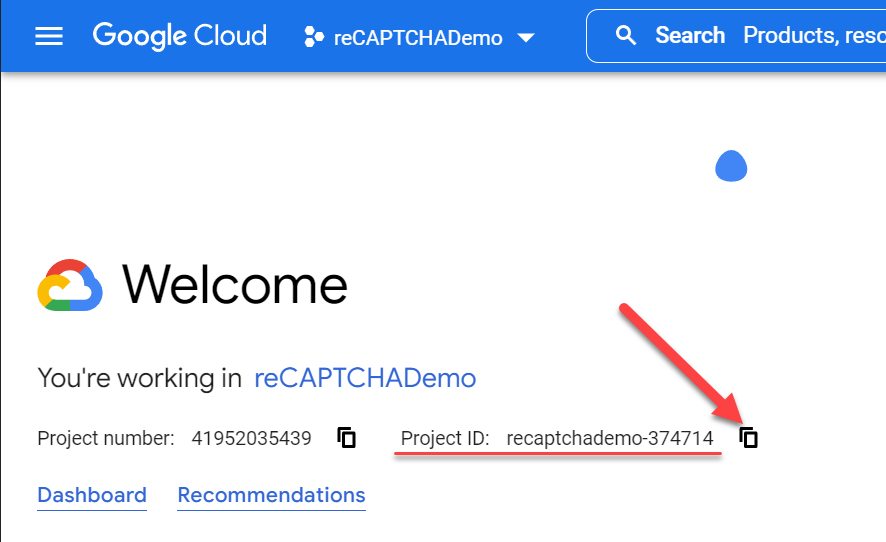
因為 GCP 上的每個「專案」都有個唯一的 `projectID`,你要特別查才知道是什麼,這裡的 `projectID` 要記得到 [https://console.cloud.google.com/welcome](https://console.cloud.google.com/welcome) 查閱!
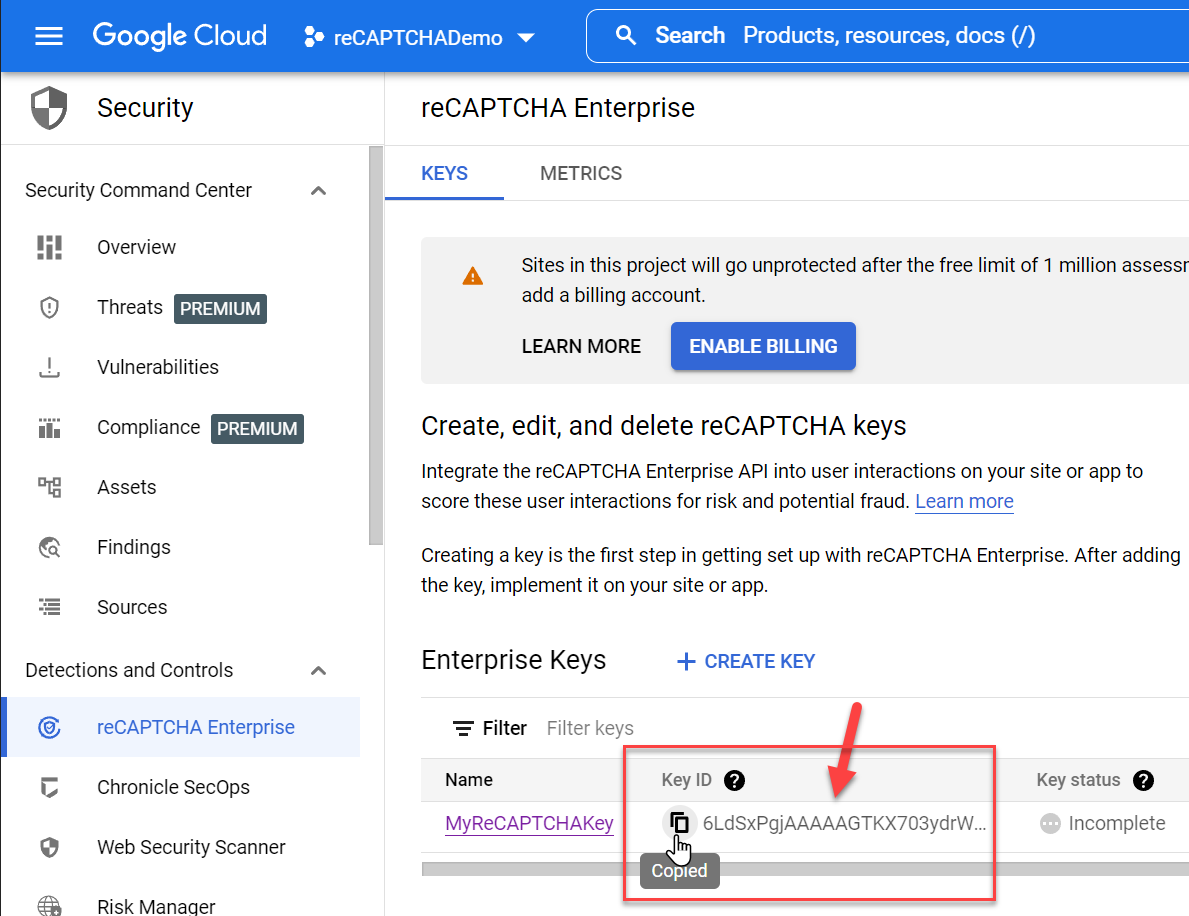
這裡的 `recaptchaSiteKey` 就是你先前建立 site key 時拿到的那組!
這裡的 `recaptchaAction` 必須跟你在「收集前端使用者回應值階段」設定的 `{action: 'login'}` 完全一樣,這裡是設定一個「驗證動作」的類型,可以是任意字串!
程式碼邏輯的部分我就不贅述了,大家可以自己看,應該很容易理解。最後的 `if (score > 0.5) {}` 就是在判斷怎樣的分數允許通過驗證,基本上分數只會介於 `0.0` ~ `1.0` 之間,共 11 個等級。但在尚未通過 [Google Security Review](https://go.chronicle.security/recaptchaupgrade) 的前提下,預設只會有 `0.1`, `0.3`, `0.7` 與 `0.9` 這四個等級,所以建議 `Score` 結果的判斷式不要用 `==` 來寫,用 `<`, `<=` 或 `>`, `>=` 才是比較正確的寫法!
6. 最後要使用就很簡單了,以下是一個簡單的 Action 使用範例
```csharp
[HttpPost]
[ValidateAntiForgeryToken]
public async Task Index([FromForm] ContactViewModel model)
{
if (await createAssessmentAsync(model.RecaptchaToken))
{
return NoContent();
}
else
{
return BadRequest();
}
}
```
### 總結
整合 Google 的 reCAPTCHA Enterprise 實在太多雷了,這對 Google Cloud Platform 不太熟悉的人來說,整合起來著實有不小的門檻,本文這麼多步驟,要是我不記錄下來,過一段時間我肯定又忘記了!😅
我來重新總結一下整個開發過程:
1. 先到 [Google Cloud console](https://console.cloud.google.com/) 建立 [reCAPTCHA keys](https://console.cloud.google.com/security/recaptcha)
你可能需要[建立一個新專案](https://cloud.google.com/resource-manager/docs/creating-managing-projects#creating_a_project),並啟用 `reCAPTCHA Enterprise API` 服務,然後才能建立 [reCAPTCHA keys](https://console.cloud.google.com/security/recaptcha)。
> 每個 GCP 上面的新專案,都需要個別手動啟用 API 服務。如果你選用先前建立過的專案,且 `reCAPTCHA Enterprise API` 服務已經啟用過,那就不需要再次啟用。
2. 安裝 [reCAPTCHA keys](https://cloud.google.com/recaptcha-enterprise/docs/keys) 到網頁上 (前端 JavaScript 為主)
這邊需要寫一點點 JavaScript 才能將 `token` 回寫到表單上,幫助前端將 `token` 送回後端評估。
3. 從後端評估前端送來的 `token` (回應值) 是否有效
你必須建立一個 GCP 上的 `Service Account` (服務帳戶),並賦予 `reCAPTCHA Enterprise Agent` 角色。然後為這個 `Service Account` 建立一把 `key` (私密金鑰) 才能組成一個 `Credential` (身分認證資訊) 讓應用程式使用,然後用這份 `Credential` 跟 `reCAPTCHA Enterprise API` 通訊,取得 `Assessment` (評估) 結果,然後依據 `Score` (分數) 判斷是否為**真人**的流量,通常這個 `Score` (分數) 只要大於等於 `0.7` 通常就意味著可信度夠高。
另外,我想補充說明的是,[reCAPTCHA Enterprise](https://www.google.com/recaptcha/about/) 有每月 100 萬次**免費使用額度**,這些次數主要是「後端」對 `reCAPTCHA Enterprise API` 發送驗證 `Assessment` (評估) 的次數,對許多網站來說,這個數量應該是綽綽有餘了,所以我才考慮直接使用這個服務。
最後,想提醒大家一下,我在 `2023.03.04` 有開辦一堂為期五天的 [ASP.NET Core 6 開發實戰:從入門到進階](https://www.accupass.com/event/2212150830454061731420) 課程,課程中將會有許多深入的 ASP.NET Core 教學,以及我們在實務上經常用到的開發工具與撰寫技巧,很多東西都是書上學不到的內容。如果你對學習 ASP.NET Core 有興趣,跟著有經驗的老師學準沒錯,名額有限,要把握時間報名喔!👍
### 相關連結
- [reCAPTCHA](https://www.google.com/recaptcha/about/)
- [Developer's Guide | reCAPTCHA | Google Developers](https://developers.google.com/recaptcha/intro)
- [Choosing the appropriate reCAPTCHA key type | reCAPTCHA Enterprise | Google Cloud](https://cloud.google.com/recaptcha-enterprise/docs/choose-key-type)
- [How-to guides | reCAPTCHA Enterprise | Google Cloud](https://cloud.google.com/recaptcha-enterprise/docs/how-to)
- [Interpreting an assessment | reCAPTCHA Enterprise | Google Cloud](https://cloud.google.com/recaptcha-enterprise/docs/interpret-assessment)
- [reCAPTCHA - 維基百科,自由的百科全書](https://zh.wikipedia.org/wiki/ReCAPTCHA)
- [reCAPTCHA - Wikipedia](https://en.wikipedia.org/wiki/ReCAPTCHA)