# 使用 Directory.Build.props 與 Directory.Build.targets 自動化 .NET 建置作業
在多專案的 .NET 團隊合作中,手動安裝工具和設定環境常常導致流程不一致,甚至影響效率。透過善用 `Directory.Build.props` 和 `Directory.Build.targets`,我們可以實現自動化的建置流程,讓每位團隊成員只需執行一次 `dotnet build`,就能完成工具安裝、husky hooks 配置,以及程式碼風格檢查,確保開發環境的一致性與便利性。這篇文章將帶你了解這兩個檔案的差異與應用,並示範如何利用它們來自動化 Husky.Net 的安裝與設定。
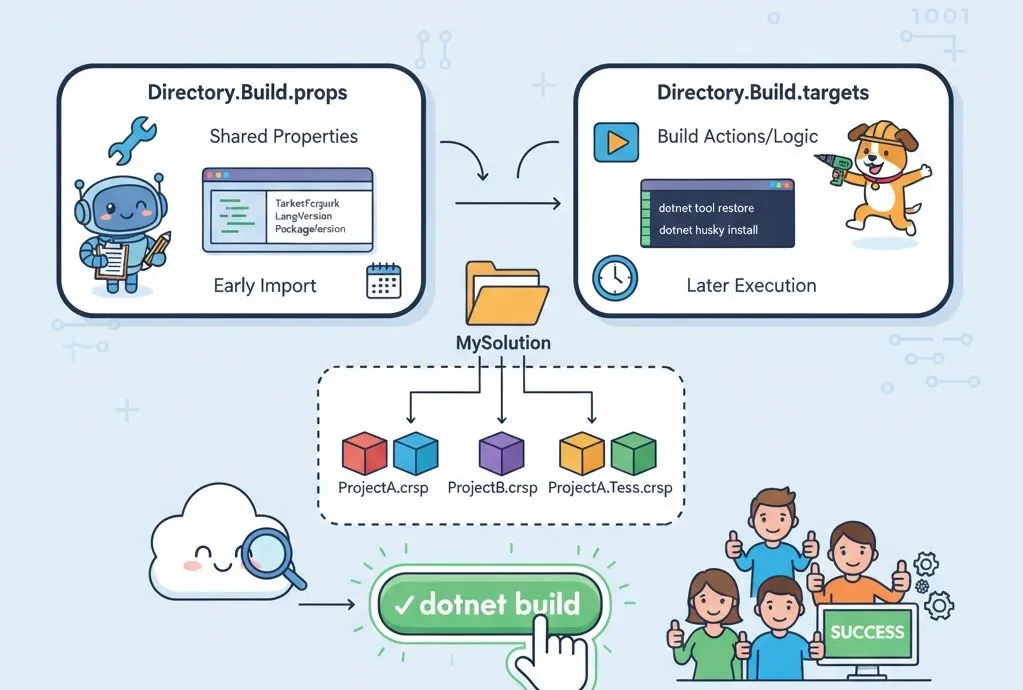
### 背景與動機:解決常見痛點
在多專案、多團隊協作的 .NET 工程中,我們常見的痛點包括:
- 每個專案檔 (`.csproj`) 要重複設定共用工具版本、程式碼風格、套件參考。
- 新人拉下來後還要手動執行 `dotnet tool restore`、`dotnet husky install` 才能開發。
- 若某人疏忽安裝了 hooks 或工具版本不同,團隊一致性降低。
- 建構流程中想插入「工具安裝檢查」「style enforcement」的 hook,但每個專案都要改。
為了解決這些,我們可以利用 MSBuild 提供的機制:在**專案根目錄**中放置兩支檔案 `Directory.Build.props` 及 `Directory.Build.targets`,讓所有子專案「**自動繼承 / 執行**」。 這樣:
- `Directory.Build.props` 用來統一 **共用屬性設定** (如工具版本、共用程式碼風格設定、分析器設定等)
- `Directory.Build.targets` 用來統一 **建立流程中的動作邏輯** (如「執行 dotnet tool restore」「執行 husky install」)
不用懷疑,在專案根目錄中放置 `Directory.Build.props` 與 `Directory.Build.targets` 這兩個檔案,Visual Studio 2022 與 `dotnet build` 都會自動讀取並匯入這兩個檔案,無需額外設定或手動 Import。
因此,團隊任何人只要將專案 `git clone` 複製回來,自動 build 一次,就可以完成**工具安裝**與**環境啟動**,非常方便!👍
### 比較 `.props` 與 `.targets` 的差異
先理解兩者何時匯入、適合做什麼。
| 檔案 | 匯入時機 | 適合用途 | 關鍵提醒 |
| --- | --- | --- | --- |
| `Directory.Build.props` | 在 `Microsoft.Common.props` 匯入後
**在建置階段非常早期的時候就匯入** | 設定共用屬性
\- TargetFramework
\- LangVersion
\- 共用套件版本 | 因為很早被匯入,若用到尚未定義的屬性可能無效。 |
| `Directory.Build.targets` | 在 `Microsoft.Common.targets` 匯入後
**在建置階段較晚階段才匯入** | \- 插入流程邏輯
\- 覆寫設定
\- 執行 Hook 任務
(如工具安裝) | 適合做「執行動作」的地方,而不是純屬性設定。 |
說簡單點:如果你只是「設定值」就放 .props;如果你想「執行動作/插入 Target」那麼用 .targets 會比較合適。
### 以安裝 Husky.Net 工具與初始化設定為例
假設我們的團隊專案結構如下:
```
/MySolution
MySolution.sln
Directory.Build.props
Directory.Build.targets
/src
ProjectA/ProjectA.csproj
ProjectB/ProjectB.csproj
/tests
ProjectA.Tests/…
```
你可以用以下命令快速建立一個 .NET 範例專案:
```bash
# 建立方案資料夾
mkdir MySolution
cd MySolution
# 初始化方案與 .gitignore
dotnet new sln
dotnet new gitignore
dotnet new editorconfig
# 初始化 Git 版控
git init -b main
git add .
git commit -m "Initial commit"
# 初始化兩個 classlib 專案並加入 solution
mkdir src
cd src
dotnet new classlib -n ProjectA
dotnet new classlib -n ProjectB
cd ..
dotnet sln add src/ProjectA/ProjectA.csproj
dotnet sln add src/ProjectB/ProjectB.csproj
git add .
git commit -m "Add ProjectA and ProjectB"
# 初始化 xunit 測試專案並加入 solution
mkdir tests
cd tests
dotnet new xunit -n ProjectA.Tests
cd ..
dotnet sln add tests/ProjectA.Tests/ProjectA.Tests.csproj
git add .
git commit -m "Add ProjectA.Tests"
# 初始化你的 .NET Local Tools 與 Husky 工具
dotnet new tool-manifest
dotnet tool install Husky
git add .
git commit -m "Add Husky tool manifest"
# 確認專案可以正常建置
dotnet build
```
**目標**:當任何專案建置時,若工具還沒安裝,就先執行 `dotnet tool restore`,然後執行 `dotnet husky install` 初始化 Husky Hooks 設定。
> 💡 詳見 [如何設定 Husky.Net 讓開發團隊確保一致的程式碼風格](/post/2025/10/09/Set-up-Husky-Net-to-ensure-consistent-code-style-for-the-development-team) 文章。
1. 你現有的 .NET 專案必須有 Git 版控,否則沒辦法設定 Git Hooks
2. 在**專案根目錄**建立 `Directory.Build.props` 檔案:共用設定範本
```xml
net10.0
12.0
$(SolutionDir)\.husky_installed
```
說明:
- `TargetFramework`、`LangVersion` 是純設定屬性,適合放在 .props。
- `HuskyInstalledFlagFile` 為我們自訂的屬性,用以檢查 Husky 工具是否已安裝。
3. 在**專案根目錄**建立 `Directory.Build.targets` 檔案:設定工具安裝流程範本
```xml
```
說明:
- `BeforeTargets="Restore;Build"`:在 `restore` 或 `build` 前執行。
- `Condition="!Exists('$(HuskyInstalledFlagFile)')"`:只有當我們的 Flag 檔案不存在時才執行 (避免每次 build 都做一次)。
- `WorkingDirectory="$(SolutionDir)"` 假設 husky hook 安裝在專案 root。
- `HuskyInstalledFlagFile` 檔案用來記錄 husky 工具的已安裝狀態。
4. 修改所有 `.csproj` 專案檔,移除 `net10.0` 與 `12.0`,改由 `Directory.Build.props` 統一管理。
5. 現在,當任何團隊成員拉下專案後,只要執行 `dotnet build`,就會自動安裝 Husky 工具並設定 Git hooks!👍
### 實務建議與注意事項
- `Directory.Build.props` 及 `Directory.Build.targets` 這兩個檔案務必要加入版控,建議放在專案根目錄,或跟方案檔放在一起,確保每個人都讀到這兩個檔。
- 若某些子資料夾有特殊行為 (例如測試專案不安裝 husky hook,或使用不同設定) 可以在子資料夾放另一份 `Directory.Build.props` / `Directory.Build.targets`,或在原檔案使用 `Condition` 控制。
- 在 `.gitignore` 中忽略你的 `HuskyInstalledFlagFile` 檔案 (如 `.husky_installed`)。
- 留意 `.props` 的匯入時機:因為它在很早被讀取,所以若試圖用尚未定義的屬性做判斷可能會出問題。
- 團隊成員須明確知道這兩個檔案的存在與功能!有時候維護時「我改專案沒生效」其實是被 `Directory.Build.xxx` 覆寫了。
- 應在 CI/CD 環境中,確認該流程 (tool restore + husky install) 在 build agent 上可執行 (可能沒有開發機上某些交互或安裝權限)。
- 若你的專案架構中有**多層目錄共用設定**需求,要注意 MSBuild 會從目前專案所在目錄 (`$(MSBuildProjectFullPath)`) 開始向上逐層搜尋 `Directory.Build.props` 檔案。一旦找到第一個符合的檔案,即匯入並停止繼續搜尋。如果多層資料夾個別都有 `Directory.Build.*` 檔案的話,需手動 Import 才能讀的到。
### 總結
這樣的設定好處多多,也可以大幅減低團隊成員的認知負荷 (cognitive load):
- 減少手動流程:拉專案下來 → build →環境自動就緒。
- 一致性提升:所有專案工具版本、hooks 行為、程式碼風格能共用設定。
- 可擴展性強:未來若有新增工具、hooks、風格檢查,只要改一處檔案即可。
- 清晰角色分離:`.props`=設定值、`.targets`=流程邏輯,使維護更有條理。
### 相關連結
- [使用 Directory.Build.props 自訂方案中所有專案共用的 MSBuild 屬性值](/post/2024/01/28/How-to-customize-your-msbuild-properties-for-all-projects-in-a-solution)
- [Microsoft Learn - Customize your build by folder or solution](https://learn.microsoft.com/en-us/visualstudio/msbuild/customize-by-directory?view=vs-2022)
- [Microsoft Learn - Common MSBuild Project Properties](https://learn.microsoft.com/en-us/visualstudio/msbuild/common-msbuild-project-properties?view=vs-2022)
- [NDepend Blog - Simplify MSBuild Directory.Build.props and targets](https://blog.ndepend.com/directory-build-props/)
- [Steven Giesel Blog - Directory.Build.props: Centralize your builds](https://steven-giesel.com/blogPost/f3f46814-06c9-41b7-84fa-09ebb3305ed0)
- [Johnny Reilly - Directory.Build.props: C# 9 for all your projects](https://johnnyreilly.com/directory-build-props-c-sharp-9-for-all)
- [Stack Overflow - Directory.Build.props only respected when building .sln file](https://stackoverflow.com/questions/78711820/directory-build-props-only-respected-when-building-sln-file)
- [Stack Overflow - Use Directory.Build.props or targets file from subdirectory](https://stackoverflow.com/questions/76044579/use-directory-build-props-or-targets-file-from-subdirectory)
- [Stack Overflow - How use properties from Directory.Build.props in Import from project file of Visual Studio](https://stackoverflow.com/questions/55213216/how-use-properties-from-directory-build-props-in-import-from-project-file-of-vis)
- [Husky.Net 官方文件 - Automate installation](https://alirezanet.github.io/Husky.Net/guide/automate.html)
- [Husky.Net GitHub Repo - Issue #54: Using 'husky attach' inside multi-project solutions leads to duplication](https://github.com/alirezanet/Husky.Net/issues/54)
- [CnBlogs - VS 自定义生成 Directory.Build.props Directory.Build.targets](https://www.cnblogs.com/GarsonZhang/p/13971705.html)
- [終南山人 - 全面掌握 Directory.Build.props](https://www.cnblogs.com/amisoft/p/18041683)
- [Reddit - How does msbuild know where to find the Directory.Build.props file?](https://www.reddit.com/r/dotnet/comments/12bszgh/how_does_msbuild_know_where_to_find_the/)